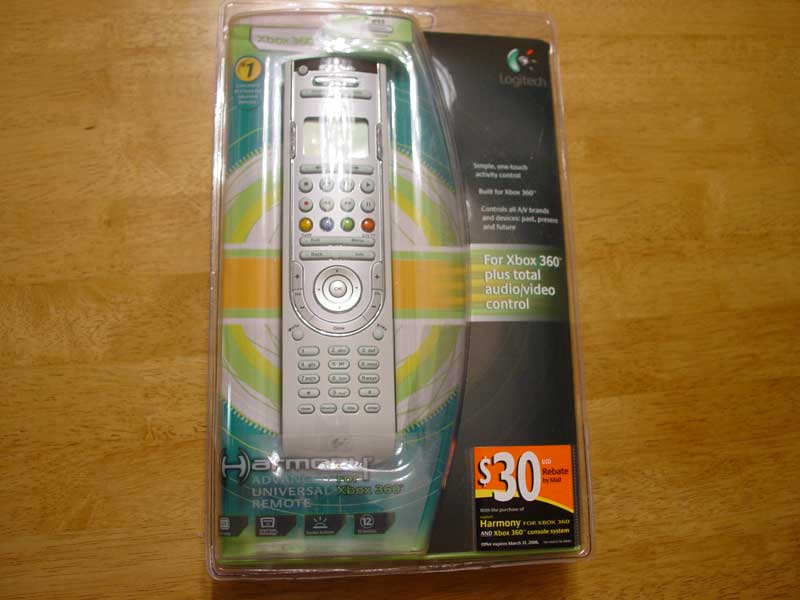
Harmony Advanced Universal Remote for Xbox 360
For a few weeks, the premium
bundle of the Xbox 360 contained a small remote to control the unit. It wasn’t
anything spectacular but it was something for those that were going to use the
Xbox 360 as more than just a gaming console and wanted a remote to control the
multimedia functions rather than using the wireless controller. If you purchase
the premium bundle now, you’ll most likely be missing this little remote, like
I did. To be honest, the remote that came with the bundle wasn’t anything to
write home about but there is one remote especially branded to work with your
Xbox 360 from a company that knows remotes and that’s Logitech. The Harmony
line of remotes is some of the best around and it was only natural that they
develop an Xbox 360 branded remote. With that said, here’s a review of the
Harmony Advanced Universal Remote for Xbox 360.
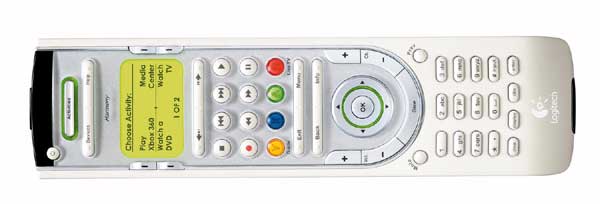
Right out of the box you can
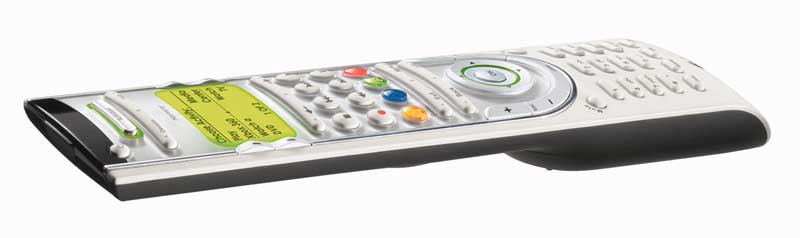
start using this white remote to control the Xbox 360. As you can see from the
pictures, the remote’s style fits well with the Xbox 360’s design. Unlike a few
of the Harmony remotes we have reviewed, the Harmony Xbox 360 remote is one
long rectangle whereas most Harmony remotes feature many smooth curves.
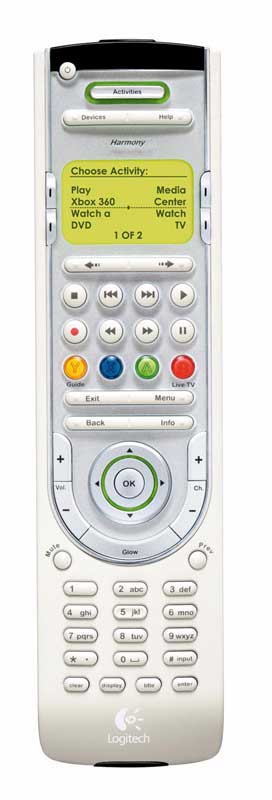
From top to bottom, the
remote features a plethora of buttons. First off is a single power button on
the top left. This button’s pretty self explanatory as it will turn on and off
devices.
The activities button on
this remote really helps sets this device apart. If you’re like me, you have
plenty of devices that you want to control in your entertainment center. Within
that, there are a few things you do that can be broken down into activities
such as watching a DVD, listening to the radio, or watching TV. You have a
sequence of buttons on one or various remotes to get your whole setup going. In
the past, there were macro buttons where you could program the sequence in
manually. With the Harmony 360 remote, that’s all in the past. Using the
website to setup what devices you have, you will then setup an activity. By
answering a few questions such as what device is used for audio and what input
the TV should be on, the web application sets up all the button presses in
sequence for you. It’s really that easy. I have a Pioneer receiver, Panasonic
LCD HDTV, a Microsoft XP Media Center 2005 PC, and the Xbox 360 as my main
setup. After putting in the devices, setting up a few activities, and
downloading the information via a USB cable to the remote I pointed the Xbox
360 remote to my entertainment center that was all turned off. Pressing the button that had the Watch TV
activity assigned to it, the remote proceeded to turn on the receiver, set it
to TV, set my Media Center to the MyTV menu, turned on my TV, waited about 10
seconds, and then switched the input to component 1. I didn’t have to do much other
than answer a few questions and the remote knew the order and to wait for my TV
to warm up from a cold start to switch the inputs. Now that’s slick
programming.
Another nice thing about
these activities is that the remote knows what state each device is in.
Pressing the Play Xbox 360 activity button, the remote switched my receiver to
DVD, turned on the Xbox 360, and switched the input to component 2. It knew the
TV and receiver was already on so it didn’t send the power signals to the
devices. Activating the Listen to Radio button, the remote proceeded to turn
off my TV, turn off the Xbox 360, and switch my receiver to Radio. The way activities are handled in the Harmony
Xbox 360 remote is one of the strong suites that set this remote apart from all
others.
The devices button lists all
the devices that you have programmed the remote for. For the few times you
don’t use the activities button, this is one way to get to a specific component
and control the functions of that component. I find myself using this feature
only when one of the devices didn’t receive the IR signal so a step was missed.
This usually happens when my remote is low on battery power so I know that if I
start using the devices button a lot, then it’s time to change the batteries.
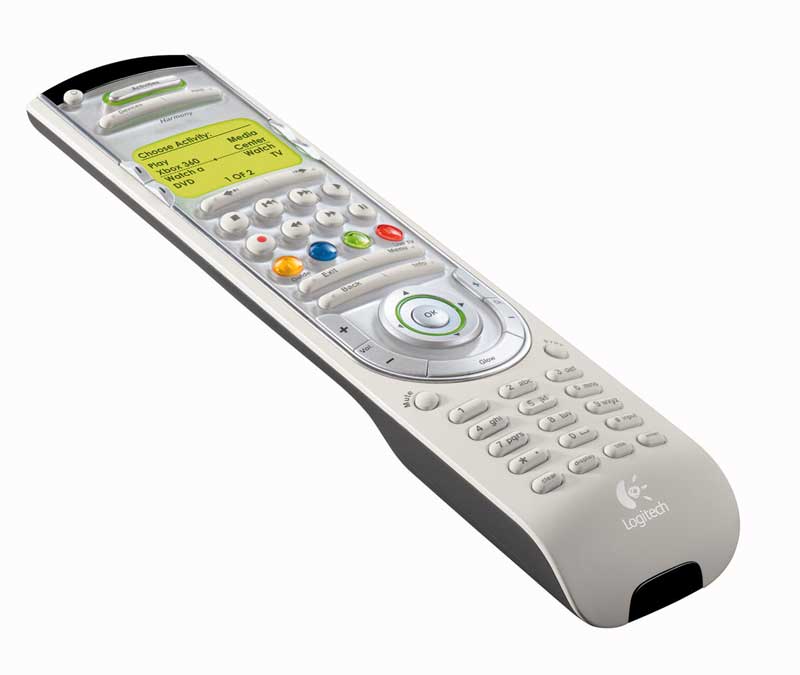
The four Xbox 360 buttons
are positioned X, Y, A, and B along one row. These buttons will work to
navigate around the Xbox 360 blades but can’t be used in games. I tried using
the remote to play Bejeweled 2 but the buttons didn’t register in the game. That’s
a little disappointing but not really a deal breaker.
In the middle of the remote
there is the nice navigational pad. The pad features four directions and a nice
feeling OK button in the middle. The OK button is slightly raised and rounded
given it a more distinct feel. You will use the navigation pad to move around
the blades and through the menus when using the Xbox 360 as a Media Center
Extender. Compared to the Harmony 688, I do like the style and feel of the pad
here. It’s a little more comfortable for me when navigating with the thumb
here. When glowing, it looks very similar to the ring of light that’s on the
console and controllers.
On either side of the
navigational pad are the channel and volume controls. These four buttons allow
you to change the channels and adjust the volume on the device it is set for.
They are long and easily reachable with your thumb.
In dark times, you’ll want
the remote to be illuminated and that’s where the glow button comes in.
Pressing the button turns on the green backlight and the whole remote shines
through. The cool thing about how the buttons glows is that unlike the Harmony
688, the buttons mostly light up at the command label and on the outer edge of
most buttons. You can easily see what button does what in the dark this way.
Below the glow button are
the number keys that you can use to select channels, chapters, and also input
text. The keys are clearly marked, nicely sized, and have good spacing between
them.
The remote is powered by
four AAA batteries. The batteries are housed in the lower part of the remote.
The battery compartment also doubles as a nice grip for the palm of your hand.
As you move up the back side of the remote, it gets thinner over two levels.
The back is also coated with a nice comfortable rubber coating.
If you have never
experienced programming a Harmony remote, let me just say that it’s one of the
easiest experiences you will have. The wizard that Harmony has created can have
you up and running in a few easy steps. By going through and listing all the
components you have as well as the activities you want, the Harmony website
will setup a file that contains commands for everything. Once you download that
file into your remote, you’re ready to go. Changes to what the buttons do can
easily be done through the web page so if you want to customize the setup a
little more you can easily do so. All the buttons can be programmed to do
something else so the flexibility is there to really make the remote your own.
As mentioned earlier, a major
advantage of this remote is the ease of programming via the web. To send
commands to the remote, there’s a small USB plug located near the IR
transmitter that’s covered by a small rubber flap. The remote can also learn
commands in case there’s something the Harmony company has missed. The learning
IR receiver is located at the bottom of the remote.
Overall, the remote was
pretty comfortable to hold and use. The large base made it easy to hold and the
back coating also made it comfortable. The buttons you frequently press are
located within easy reach of your thumb when holding the remote at the base.
Logitech’s Harmony Advanced
Universal Remote for Xbox 360 offers multimedia controlling nirvana for complex
and simple setups. The remote not only fits well with the Xbox 360 style but
it’s comfortable to hold, easy to use, and easy to program. It doesn’t have as
many buttons as the higher end remotes from Harmony but what it has should be
enough for most people. One missing button I would’ve liked to have seen would
be the green
Rating: 9 Excellent
* The product in this article was sent to us by the developer/company.


About Author
I've been reviewing products since 1997 and started out at Gaming Nexus. As one of the original writers, I was tapped to do action games and hardware. Nowadays, I work with a great group of folks on here to bring to you news and reviews on all things PC and consoles.
As for what I enjoy, I love action and survival games. I'm more of a PC gamer now than I used to be, but still enjoy the occasional console fair. Lately, I've been really playing a ton of retro games after building an arcade cabinet for myself and the kids. There's some old games I love to revisit and the cabinet really does a great job at bringing back that nostalgic feeling of going to the arcade.
View Profile